That Clicking Sound: Your Hard Drive Is Trying to Tell You Something
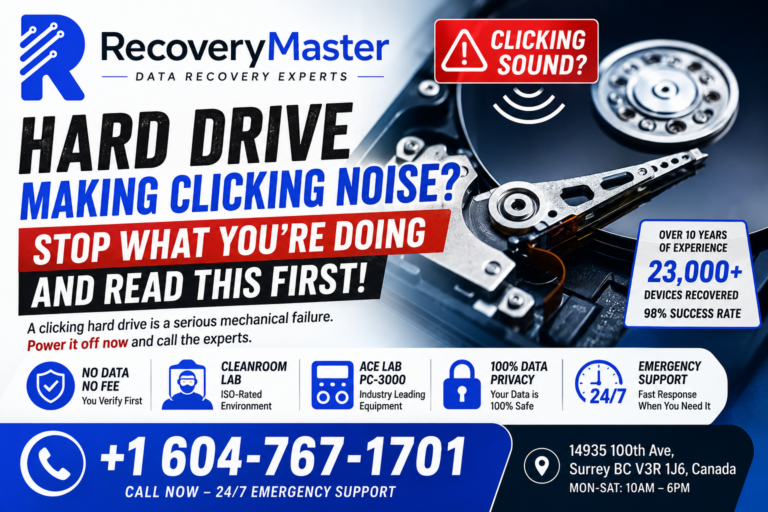
You’re working late when your hard drive suddenly emits a rhythmic clicking noise—distinct from keyboard input or system notifications, originating deep within the chassis. This acoustic signature, often described as a “click of death,” is a critical indicator of mechanical failure, typically caused by a stuck read/write head or damaged platter surface. If you’re hearing this, you’re likely experiencing a mix of dread and panic, and rightly so—it’s one of the most severe warning signs of impending drive failure. However, the good news is that with prompt and correct action, your data remains highly recoverable. In Surrey, RecoveryMaster has successfully retrieved files from thousands of clicking drives, leveraging advanced diagnostic and recovery techniques. In this guide, we’ll explain the technical causes behind that clicking sound, why immediate drive shutdown is imperative to prevent further platter damage, and the precise steps you should take next.
What Does the Clicking Sound Actually Mean?
The clicking sound—often called the “click of death”—is not a random noise. It’s a mechanical signal. Inside your hard drive, a tiny arm (the actuator) reads and writes data on spinning magnetic platters. When that arm can’t find its position, it snaps back and forth, producing a clicking or ticking sound. This usually indicates one of several hardware issues:
Common Causes of Hard Drive Clicking
1. Failed Read/Write Heads: The most common cause. The heads have crashed or become misaligned, and the drive keeps trying to reset them. This is a physical failure that requires professional hard drive data recovery.
2. Damaged Platters: If the platters (the disks that store your data) are scratched or have surface damage, the heads may click as they struggle to read. This can happen from a drop, a power surge, or simple wear and tear.
3. Firmware Corruption: Sometimes the drive’s own software gets corrupted, causing the mechanical parts to malfunction. This is tricky because the drive may still spin but can’t communicate properly.
4. Stuck Actuator Arm: If the arm gets stuck (often due to a shock or power issue), it will try to move and click repeatedly.
5. Loose or Damaged Components: Less common, but a loose screw or a damaged spindle motor can also cause clicking. However, this is rare compared to head or platter issues.
Why You Must Stop Using the Drive Immediately
The single most important thing you can do when you hear a clicking sound is to power down the drive and stop using it. Every second the drive stays on, the read/write heads are scraping against the platters, potentially causing irreversible damage. This is not like a software error where you can just restart and hope for the best. Clicking is a mechanical failure, and continued use can turn a recoverable situation into a permanent data loss. In Surrey, many people make the mistake of running diagnostic tools or trying to “fix” the drive themselves. Don’t. You’re only making things worse.
What You Should Do Right Now: A Step-by-Step Guide
Follow these steps immediately to maximize your chances of recovery:
Step 1: Power Down and Unplug
Shut down your computer properly if you can, then unplug it. If the drive is external, disconnect it. The goal is to stop all activity on the drive. Do not try to restart it to see if the click goes away—it won’t.
Step 2: Do Not Run Any Software
Avoid disk repair tools, recovery software, or even file explorers. These programs send read commands to the drive, which forces the heads to move and can cause further damage. If you need to recover data, you need a professional lab with the right tools.
Step 3: Do Not Open the Drive Yourself
Hard drives are sealed in a clean room environment. Opening the drive at home exposes the platters to dust and moisture, which will destroy the data. Even a single speck of dust can render the drive unrecoverable. Leave the clean bench work to professionals.
Step 4: Contact a Professional Data Recovery Service in Surrey
Call RecoveryMaster at 604-767-1701. We offer a free diagnostic and a no-data, no-fee guarantee. Our technicians will assess the damage and provide a clear recovery plan. We’ve handled over 23,000 devices with a 98% success rate, and we have the specialized equipment to handle clicking drives safely.
Step 5: While You Wait, Back Up Other Data
If you have other drives or cloud backups, make sure they’re current. This won’t help the clicking drive, but it will protect your other data. And if you have a backup of the clicking drive, then you can relax a bit—but still have the drive assessed, because it may be a sign of a wider issue.
Can a Clicking Hard Drive Be Repaired? (And Should You?)
The short answer: yes, a clicking hard drive can often be repaired, but not in the traditional sense. The goal is not to fix the drive so you can keep using it—that’s risky. The goal is to recover the data from the damaged drive. In a professional lab like RecoveryMaster, we use advanced tools like PC-3000 and DeepSpar to work around mechanical failures. We might replace the read/write heads, repair the firmware, or use imaging techniques to extract data from the platters. This is delicate work that requires a clean environment and years of experience. We have a HEPA-filtered clean bench to ensure no dust gets inside the drive during surgery.
Why DIY Is Not an Option
You might see YouTube videos showing people swapping heads in their kitchen. Don’t be fooled. Those are often staged or lucky cases. In reality, head swaps require precision tools, alignment equipment, and a dust-free environment. Without proper training, you’ll likely damage the platters further, making data recovery impossible. The cost of professional recovery is far less than the cost of losing your business files, family photos, or years of work.
What About SSD and Other Drives? Clicking Is a HDD Thing
If you’re hearing a clicking sound from your SSD, that’s actually impossible—SSDs have no moving parts. The clicking might be coming from a fan or a failing power supply. But if you have a traditional hard drive (HDD) in your laptop or desktop, clicking is a clear sign of mechanical failure. For SSDs, you might experience different symptoms like the drive not being recognized or freezing. If you have an SSD issue, check out our SSD & NVMe Data Recovery page. For HDDs, the process is different, and our hard drive data recovery page explains it in detail.
How RecoveryMaster Can Help: The Surrey Advantage
When you bring your clicking drive to RecoveryMaster, you’re not just getting a technician—you’re getting a team with over a decade of experience and a track record of 23,000+ recoveries. Here’s what sets us apart:
Professional Lab Equipment
We use PC-3000 for firmware-level recovery, DeepSpar for disk imaging, and a HEPA-filtered clean bench for mechanical repairs. This equipment allows us to handle even the most severe cases of clicking drives. We don’t rely on guesswork—we use science.
Free Diagnostic and No Data, No Fee
We’ll diagnose your drive for free and give you a clear, honest assessment. If we can’t recover your data, you don’t pay a cent. This is our promise to you. We understand that the cost of recovery is a concern, but we also know that losing data is far more expensive. We’ll provide a transparent quote before any work begins.
Serving Surrey and Beyond
Located at 14935 100th Ave, Surrey, BC, we’re easily accessible. But we also serve clients across the Lower Mainland and even ship drives from across Canada. No matter where you are, you can trust us with your data. If you have other devices that need attention—like a laptop, phone, or RAID array—we can help with those too. Check out our laptop data recovery and enterprise data recovery services.
Prevent Future Clicking: Tips to Protect Your Data
Once you’ve recovered your data, it’s time to think about prevention. Hard drives are mechanical and will eventually fail. Here’s how to protect yourself:
Back Up Regularly
Use the 3-2-1 rule: keep three copies of your data, on two different media types, with one copy offsite. Cloud backups are great, but local backups are faster. Don’t wait until it’s too late.
Monitor Drive Health
Use tools like CrystalDiskInfo to check your drive’s SMART status. If you see warnings, replace the drive before it fails. But remember, SMART status can’t predict all failures, especially sudden mechanical ones.
Handle With Care
Avoid dropping your laptop or external drive. Even a small shock can cause head crashes. When transporting a drive, use a padded case and keep it in a static-free bag.
Don’t Wait: The Clock Is Ticking
Every hour you wait increases the risk of permanent data loss. The clicking sound is a warning—heed it. Whether it’s your business financials, your thesis, or your family photos, your data is worth saving. Contact RecoveryMaster today at 604-767-1701 or visit our contact page to schedule your free diagnostic. We’re here to help, and we won’t charge you unless we succeed. Your data is our mission.